

A Simpler Way to Sign In: Mindbody Account Updates
Mindbody has rolled out a new Consumer Identity feature, designed to create a simpler, more secure sign-in experience across its booking platforms.
If you primarily book through the Upstate App, nothing changes for you. You can continue using the Upstate App as normal to book and manage your classes. ✨
If you use the Mindbody App or My Account online portal, you may notice a few changes the next time you sign in.
What’s changed?
The new update brings your Mindbody sign-in into one more secure, connected account.
Here’s what to expect:
Sign in as usual using your existing credentials.
If your current password doesn’t meet the updated security standards, you’ll be asked to create a stronger one.
Verify your email by entering a six-digit code sent to your inbox.
Once complete, you’ll have a secure login that works across Mindbody’s platforms.
If you’ve already verified your email through the Mindbody App, you may not be prompted to verify it again.
Your bookings, class history and purchases will remain exactly as they are. This update is designed to improve your sign-in experience, not change your Upstate account.
What does the new sign-in look like?
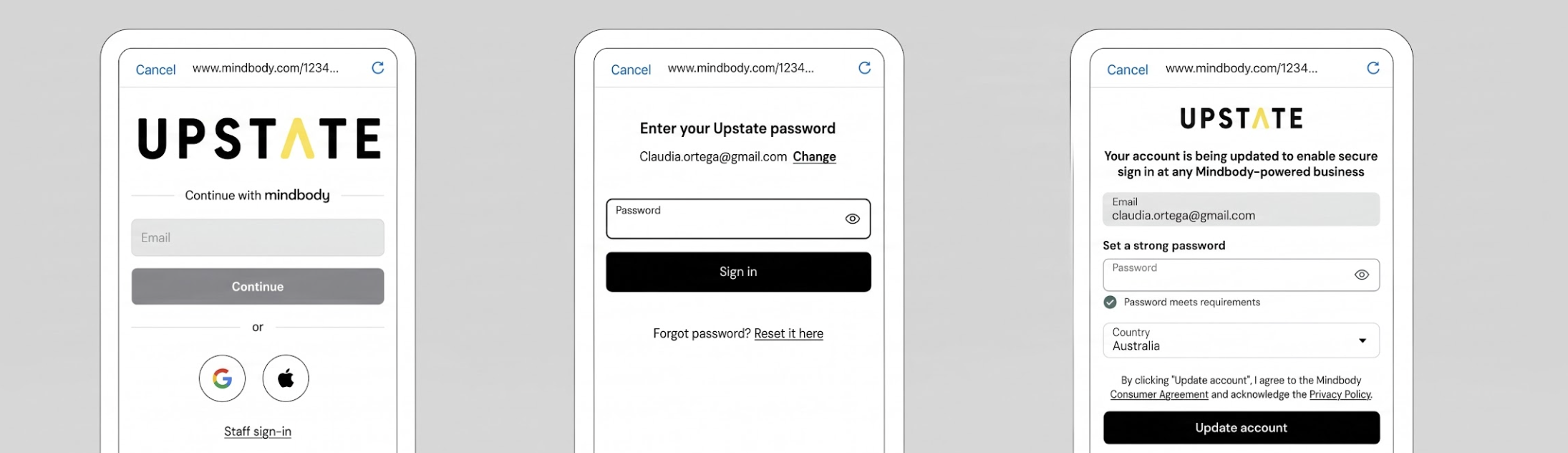
If you use the Mindbody App or My Account online portal, you’ll see a refreshed sign-in screen.
You may be asked to:
Confirm your email address.
Enter a six-digit verification code.
Create a new password if required.
Once complete, you can continue booking and paying with your new, secure login. 🔐
How to verify your email and update your account
If your account requires an update, follow these simple steps:
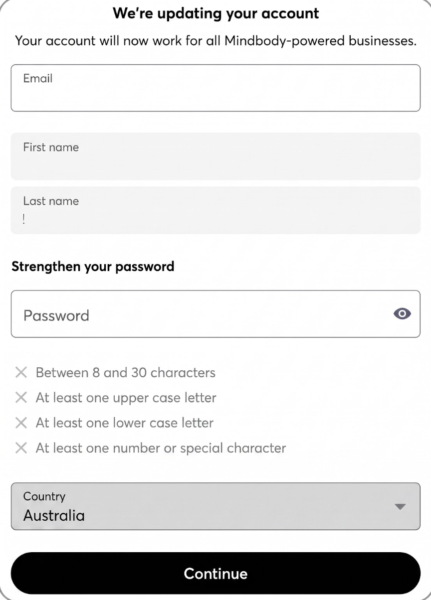
Sign in to your account. You’ll see the “We’re updating your account” screen.
Enter a new password that meets the required security standards.
Click Continue.
Check your inbox for an email containing a six-digit verification code.
Enter the code on the “Verify your email” screen.
Once verification is complete, click Finish.
Your account is now updated!
Manage your Mindbody account
You can manage your Mindbody account at any time at account.mindbodyonline.com. Changes made at account.mindbodyonline.com are automatically updated in your linked member profiles at locations where you’re verified.
From here, you can manage:
First and last name
Email address
Connected Google or Apple accounts
Password
Family members
What does this mean for Upstate members?
One connected login
Use one account across supported Mindbody platforms and locations, with sign-in options including:
Password
Email verification code
Google or Apple login
Facebook login support is ending as part of this update.
Centralised family management
Mindbody’s Family Account feature allows members to book, purchase and manage family profiles from one account.
Please note: Family Account management is not available directly through the Upstate App. You’ll need to use your Mindbody account online to manage this feature.
A smoother booking experience
The goal is simple: fewer login complications, easier account management and a more seamless way to book and pay.
FAQs
Create a Mindbody Account
When you sign up for a new account, your email address is automatically verified across Mindbody products once you complete the verification process.
After entering the six-digit code sent to your email, any existing profiles using the same email address may automatically link to your account.
To create an account:
Create a Mindbody Account and click Continue.
Verify your email by entering the six-digit code sent to your inbox.
Complete your profile when logging into a location for the first time. You may be prompted to provide information specific to that location.
What if I don’t receive a password reset email?
If you haven’t received your email:
Check your Spam, Junk or Promotions folders.
Add the following Mindbody email addresses to your contacts:
If you’re still having trouble, our Member Support team is here to help. 💛
How do I disconnect my Google or Apple login?
You can disconnect your Google or Apple login by visiting account.mindbodyonline.com and following these steps:
In the Password section of the Account Info tab, click Disconnect next to the connected social account.
A confirmation message will appear to confirm the social connection has been removed.
In the Email section, click Edit to add a new email address to your account.
Click the verification link sent to your new email address to confirm the change.
How do Family Accounts work?
A Family Account connects multiple family profiles under one Mindbody account. This allows members to manage family information, book classes and make purchases for family members from one place. Mindbody Family Accounts FAQs
How can I manage their Family Account information?
Members can manage their account information through Mindbody using one of the following options:
Go directly to account.mindbodyonline.com and sign in.
Log into the My Account online portal → Client Profile → Edit link in the Mindbody account section.
Log into the Upstate website through our branded web tools → Account Info → Edit account info in the Mindbody account section.
Members can manage the following details in their Mindbody account:
First and last name
Email address
Connected social media accounts
Password
Family members
Changes are automatically transferred to member profiles at locations where they are verified.
How can I set up or manage a Family Account?
Mindbody has a range of helpful support articles covering Family Accounts:
How to change a family member’s name on a Mindbody account (Family Accounts)
How to move a family member to their own account (Family Accounts)
How to add family members to a Mindbody account (Family Accounts)
How to switch profiles when logged in to a Family Account (Family Accounts)
How to book and buy for a family member or dependant (Family Accounts)
How to add or update a credit card on a family member’s profile (Family Accounts)
Do Family Accounts mean memberships or pricing options are shared?
No. Family Accounts and shared memberships or pricing options are two separate functionalities in Mindbody.
Family Accounts connect member profiles so they can be managed together. They do not automatically mean memberships, credits or pricing options are shared between family members.
Sharing pricing options and memberships is managed through client relationships, which determine who can share or pay for a service.
For more information, visit:
Need a hand?
We’ve added a dedicated Mindbody section to our Support Hub, including a helpful guide on Create + Verify Your Profile. You can also reach out to our Member Support team if you need a hand getting set up. 💛
Less login confusion, more seamless booking. ✨
The update is designed to make your Mindbody experience easier, while your Upstate App bookings continue as normal. We’ll keep you updated if there’s anything else you need to know!